What to Do If Your Microphone Isn’t Detected on Windows 10/11?
By Jon | 29 January, 2026
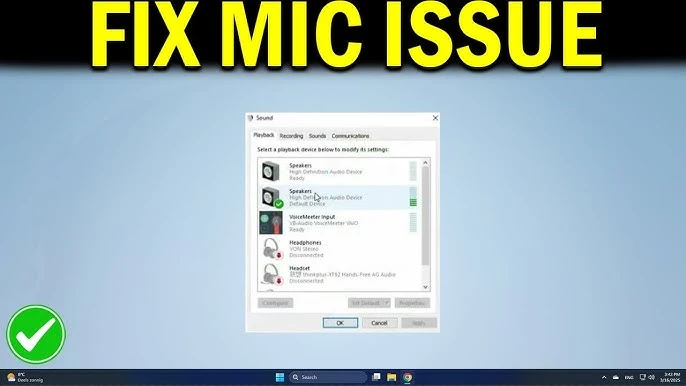
Table of Contents
- Check Physical Connections
- Set Your Microphone as the Default Device
- Check Microphone Privacy Settings
- Update or Reinstall Audio Drivers
- Run the Audio Troubleshooter
- Enable the Microphone in Device Manager
- Adjust Sound Settings
- Check for Windows Updates
- Test Your Microphone Online
- Reset Your PC as a Last Resort
Are you annoyed because Windows 10 or 11 does not detect your microphone? Whether you are joining a video meeting, podcast, or gaming session, a faulty mic can be a deal breaker. The good news is that this is often easy to fix. Follow this mic test checklist to solve the problem.
1. Check Physical Connections
- Ensure Proper Plugging: Confirm your microphone is correctly connected. For USB mics, try a different port.
- Inspect for Damage: Make sure cables and the mic itself are not damaged.
- Test Another Device: Connect it to another computer to rule out hardware failure.
2. Set Your Microphone as the Default Device
- Right-click the Sound icon > Select Sounds.
- Go to the Recording tab.
- Select your mic > Click Set Default > Apply.
3. Check Microphone Privacy Settings
Windows can block mic access. Open Settings > Privacy > Microphone and enable access for apps and the system.
4. Update or Reinstall Audio Drivers
Outdated drivers can stop your mic test from working:
- Right-click Start > Device Manager.
- Expand Audio inputs and outputs.
- Update or uninstall the microphone driver, then restart.
5. Run the Audio Troubleshooter
Go to Settings > System > Sound, select your mic, and click Troubleshoot.
6. Enable the Microphone in Device Manager
In Device Manager, right-click your mic and choose Enable device if disabled.
7. Adjust Sound Settings
Open Control Panel > Sound > Recording. Select your mic, click Properties, and check the Levels tab.
8. Check for Windows Updates
Outdated Windows can cause compatibility issues. Check Settings > Update & Security for updates.
9. Test Your Microphone Online
After each fix, confirm it with a free MicTest.pro tool. It shows live visualization and playback so you can verify mic functionality.
10. Reset Your PC as a Last Resort
If nothing works, back up your data and reset the PC via Settings > System > Recovery.
By following this step-by-step guide, you can fix microphone detection issues and verify your mic with our free mic test tool.
Frequently Asked Questions
Why is my microphone not detected on Windows 10 or Windows 11?
This usually happens due to loose connections, disabled microphone settings, privacy restrictions, outdated audio drivers, or Windows bugs. In most cases, the mic is working fine but Windows isn’t configured correctly to recognize it.
How do I check if my microphone is properly connected?
If you’re using a USB microphone, unplug it and reconnect it to a different USB port. For 3.5mm microphones, ensure it’s plugged into the correct mic jack. Testing the mic on another device helps confirm whether the issue is hardware-related.
How do I set my microphone as the default device in Windows?
Right-click the speaker icon in the taskbar → select Sounds → open the Recording tab → choose your microphone → click Set Default and apply the changes. This ensures Windows uses the correct mic for all apps.
Can Windows privacy settings block my microphone?
Yes. Go to Settings → Privacy & Security → Microphone and make sure microphone access is enabled for both the system and the apps you’re using, such as browsers, meeting apps, or games.
Do outdated audio drivers cause microphone detection problems?
Yes. Outdated or corrupted audio drivers can prevent Windows from detecting your microphone. Updating or reinstalling the drivers from Device Manager often fixes the issue after restarting the system.
How do I enable a disabled microphone in Device Manager?
Open Device Manager → expand Audio inputs and outputs → right-click your microphone. If you see Enable device, click it. This immediately restores mic detection in most cases.
What should I check in Windows sound settings for my microphone?
Go to Control Panel → Sound → Recording, select your microphone, then open Properties. Make sure the mic volume isn’t muted and the device status shows as working properly.
Can Windows updates fix microphone issues?
Yes. Installing the latest Windows updates can resolve compatibility issues, system bugs, and missing audio components that may be preventing your microphone from being detected.
How can I test if my microphone is working after fixing it?
Use an online tool like MicTest.pro to test your microphone instantly. It shows real-time sound visualization and playback, helping you confirm your mic is ready for meetings, streaming, or gaming.
What should I do if my microphone still isn’t detected after all fixes?
If nothing works, back up your data and perform a PC reset via Settings → System → Recovery. This is a last-resort solution but often fixes deep system-level microphone issues.