Troubleshooting Headphone Detection in Windows 10 and 11 — Complete Guide 2026
By Jon — Windows Audio Expert | | 11 min read
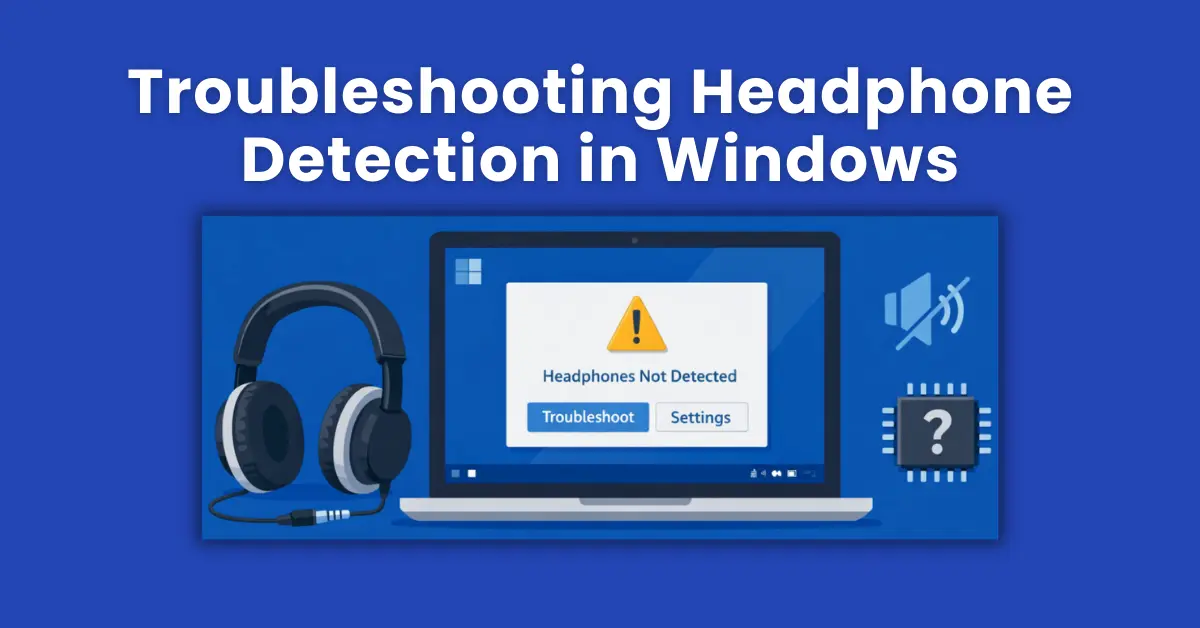
Quick Answer — Headphones Not Detected in Windows
- Set headphones as default output device in Settings → System → Sound
- In Control Panel → Sound → Playback tab, right-click → Show Disabled Devices and enable
- Update or reinstall your audio driver via Device Manager
- Run the built-in Playing Audio Troubleshooter in Settings
- Bluetooth headphones? Remove the device, re-pair, and check Bluetooth service is running
- Verify after fixing using the free sound test tool
Table of Contents
- Why Windows Fails to Detect Headphones
- Quick Diagnosis: Identify Your Headphone Type
- Fix 1: Check Physical Connection & Ports
- Fix 2: Set Headphones as Default Output Device
- Fix 3: Enable Hidden/Disabled Playback Devices
- Fix 4: Update or Reinstall Audio Driver
- Fix 5: Run the Windows Audio Troubleshooter
- Fix 6: Fix Bluetooth Headphone Detection
- Fix 7: Realtek HD Audio Manager — Headphone Jack Pop-up
- Fix 8: Restart Windows Audio Service
- Which Fix Should You Try First?
- Test Your Headphones After Fixing
- Frequently Asked Questions
Why Windows Fails to Detect Headphones — The Real Reasons
You plug your headphones in, and nothing happens. Windows keeps blasting audio through the laptop speakers as if the headphones were never inserted. Or the headphones briefly show up and then disappear. Or they appear in Device Manager with a warning triangle. Sound familiar?
This is one of the most reported audio problems across both Windows 10 and Windows 11, and it catches people off guard because the headphones themselves are usually perfectly fine. The problem almost always lives inside Windows — not inside the hardware.
Here are the real reasons Windows fails to detect headphones:
- The headphones are not set as the default audio output — Windows keeps routing sound to speakers instead
- The headphone playback device is disabled — Windows hides it so it never appears in the output list
- A corrupted or outdated audio driver — especially common after Windows 10/11 feature updates
- Realtek HD Audio Manager blocking auto-switching — common on laptops with combo audio jacks
- Bluetooth pairing or service issues — applies to wireless headphones
- The Windows Audio service has crashed — rare but happens after updates or system crashes
Rule out hardware first: Plug your headphones into a phone or another PC. If they produce sound normally there, the problem is 100% a Windows software issue and every fix in this guide applies. If they produce no sound on any device, the headphones themselves may be damaged.
Quick Diagnosis: Identify Your Headphone Type First
The right fix depends on your headphone connection type. Identify yours before working through the fixes:
What kind of headphones do you have?
- 3.5mm wired headphones — most common; affected by jack detection, driver, and Realtek issues (Fixes 1, 3, 4, 7)
- USB headphones or headset — appear as separate audio devices; affected by USB port, driver issues (Fixes 1, 4, 5)
- Bluetooth headphones — wireless; affected by pairing, Bluetooth service, audio profile (Fix 6)
- Headphones via USB-C or adapter — same as USB; may need specific adapter driver (Fix 4)
Fix 1: Check Physical Connection and Ports
Always Try This FirstBefore diving into software, rule out simple physical causes. This takes 60 seconds and saves you from unnecessary driver reinstalls.
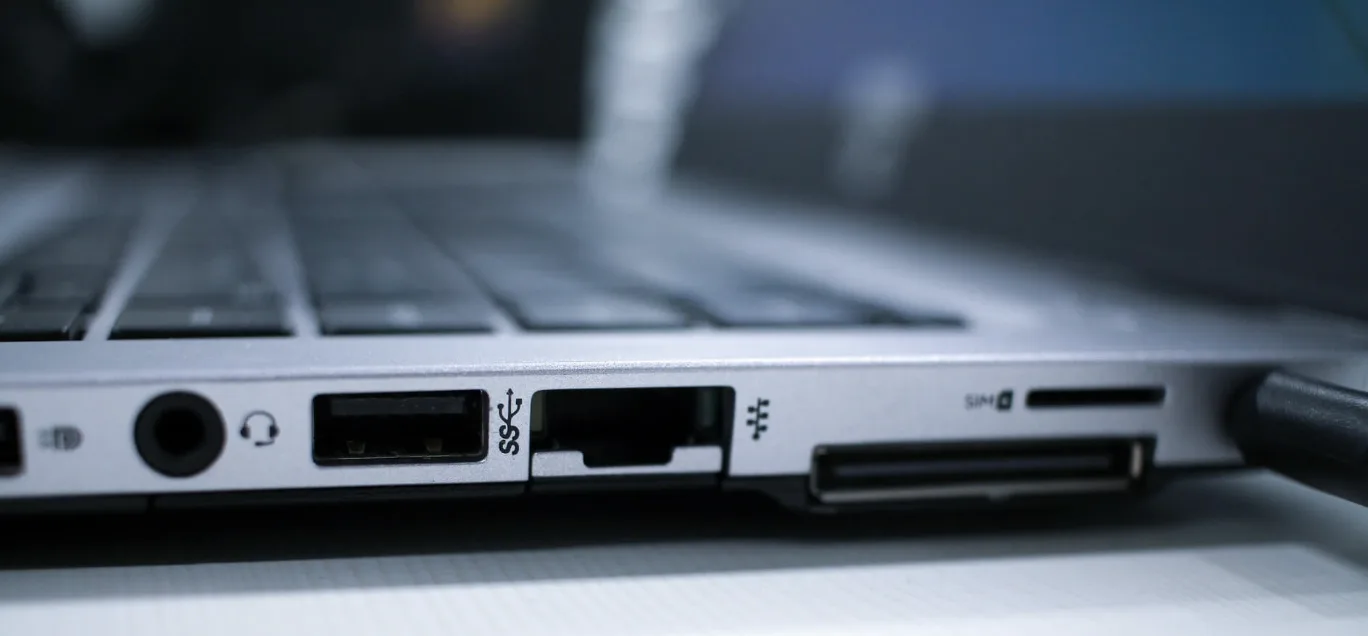
- Unplug your headphones completely, wait 5 seconds, and firmly re-insert them. Make sure the plug clicks fully into the port.
- If your PC has multiple 3.5mm ports, try a different one. Many desktops have both front-panel and rear-panel jacks — rear panel jacks are more reliable on desktops.
- For USB headphones, try a different USB port. Avoid USB hubs — plug directly into a motherboard port.
- Check the cable for damage, especially near the plug. A bent or damaged TRRS connector will cause detection failures.
- Clean dust from the port gently using a dry cotton swab.
Fix 2: Set Headphones as Default Output Device
Most Common Fix — Windows 10 & 11This is the number one reason headphones go undetected: Windows detects them but continues routing audio to your speakers because the headphones have not been set as default. Plugging in headphones does not automatically switch audio output in some configurations.
- Click the speaker icon in the taskbar (bottom right). You will see a small arrow next to the volume slider.
- Click that arrow to see all available output devices.
- Select your headphones from the list. Windows switches instantly.
- Alternatively, go to Settings → System → Sound. Under Output, click the dropdown and select your headphones.
- Right-click the speaker icon in the taskbar and select Open Sound Settings.
- Under Output, use the dropdown to select your headphones.
- Or right-click the speaker icon → Sounds → Playback tab → right-click your headphones → Set as Default Device.
Still not listed? If your headphones do not appear in the Output dropdown at all, move on to Fix 3 — the device may be hidden or disabled by Windows.
Fix 3: Enable Hidden or Disabled Playback Devices
Fixes "Headphones Not Listed" IssueWindows silently disables audio devices it thinks are not in use. When your headphones are disabled, they simply vanish from the output list — as if they were never connected. This is incredibly confusing but easy to fix once you know where to look.
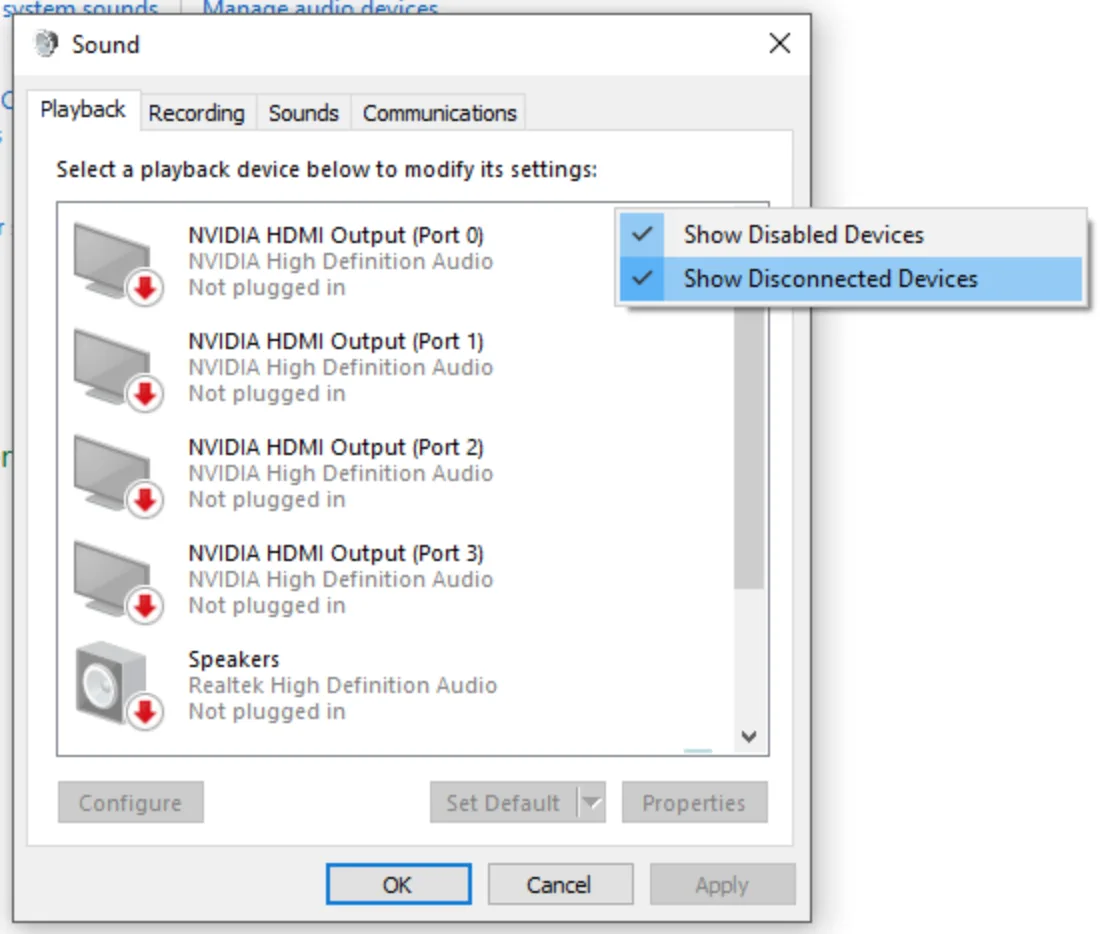
- Press Windows + R, type
mmsys.cpl, press Enter. - The Sound window opens on the Playback tab.
- Right-click anywhere in the empty area of the device list.
- Check both "Show Disabled Devices" and "Show Disconnected Devices".
- Your headphones will now appear greyed out with a downward arrow icon.
- Right-click the headphone entry and select Enable.
- Right-click it again and select Set as Default Device.
- Click Apply → OK.
Fix 4: Update or Reinstall Your Audio Driver
Essential After Any Windows UpdateA corrupted, outdated, or Windows-Update-overwritten audio driver is one of the most persistent causes of headphone detection failure. Windows 11 24H2 is particularly known for overwriting manufacturer audio drivers with generic ones that lose headphone jack detection capability.
- Press Windows + X and select Device Manager.
- Expand Sound, video and game controllers.
- Right-click your audio device (commonly Realtek High Definition Audio or Intel Smart Sound Technology) and select Update driver.
- Choose Search automatically for drivers.
- Restart your PC after the update completes.
- In Device Manager, right-click your audio device → Uninstall device.
- Check "Delete the driver software for this device" if prompted.
- Click Uninstall.
- Restart your PC. Windows will automatically reinstall a fresh driver on reboot.
- Plug in your headphones and check if they are now detected.
Fix 5: Run the Windows Playing Audio Troubleshooter
Automated DiagnosisWindows has a built-in audio troubleshooter that can automatically detect and fix common headphone detection problems, including misconfigured default devices, driver issues, and audio service problems. It is worth running before doing anything manual.
- Open Settings → System → Troubleshoot → Other troubleshooters.
- Find Playing Audio and click Run.
- Follow the on-screen prompts. When asked to select a device, choose your headphones.
- Apply any recommended fixes.
- Restart your PC if prompted.
- Open Settings → Update & Security → Troubleshoot → Additional troubleshooters.
- Click Playing Audio → Run the troubleshooter.
- Follow the prompts and apply any suggested fixes.
Fix 6: Fix Bluetooth Headphone Detection in Windows
Bluetooth Headphones OnlyBluetooth headphone detection failures have their own set of causes. The two most common are a broken pairing entry and the Bluetooth Support Service being stopped or disabled.
- Go to Settings → Bluetooth & devices.
- Find your headphones in the device list, click the three-dot menu and select Remove device.
- Put your headphones back into pairing mode (usually hold the power button for 5–8 seconds).
- Click Add device → Bluetooth and re-pair them.
- After pairing, go to Settings → System → Sound and set them as the output device.
- Press Windows + R, type
services.msc, press Enter. - Scroll down to Bluetooth Support Service.
- If it shows Stopped, right-click it and select Start.
- Right-click → Properties, set Startup type to Automatic.
- Click Apply → OK.
Fix 7: Realtek HD Audio Manager — Headphone Jack Pop-up
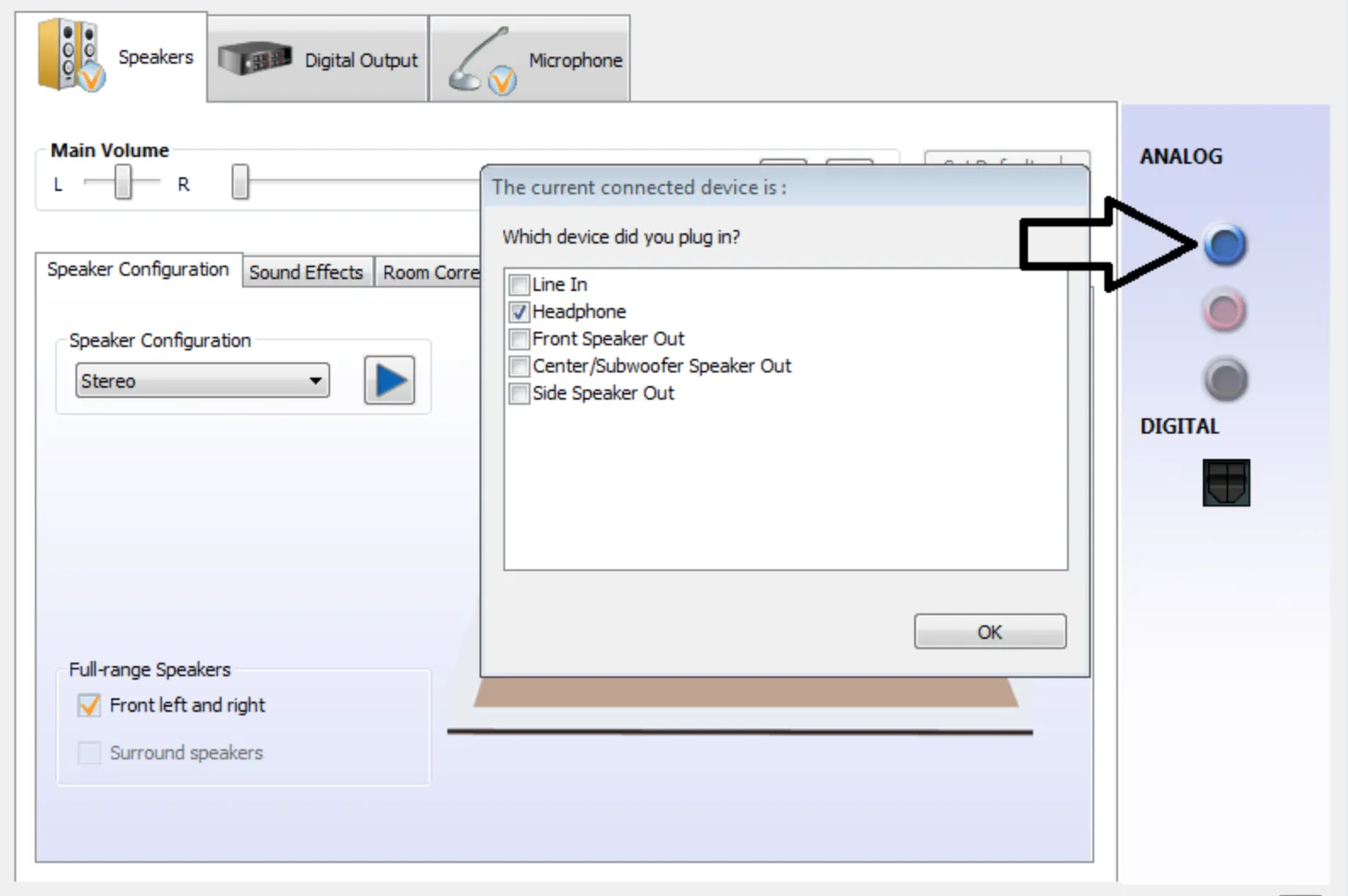
Laptops & Realtek AudioMany laptops and desktops use Realtek audio chipsets. When you plug headphones into a Realtek-equipped machine, a small pop-up dialog is supposed to appear asking what you just plugged in — Headphones, Microphone, or Other. If this pop-up never appears, or if it was dismissed incorrectly, Windows will not route audio to the headphones.
- Check your system tray for the Realtek HD Audio Manager icon (looks like a small speaker). If it is not there, search for it in the Start menu.
- Open Realtek HD Audio Manager.
- Look for Connector Settings or Jack Information.
- Enable "Enable auto popup dialog" when a device is plugged into the headphone jack.
- Unplug and replug your headphones — the dialog should now appear asking what you connected.
- Select Headphones and confirm.
Fix 8: Restart the Windows Audio Service
When Nothing Else WorksThe Windows Audio service manages all sound routing. If it has crashed or is stuck, no headphone will be detected regardless of your settings. Restarting it takes under a minute and often resolves detection failures that survive driver reinstalls and troubleshooters.
- Press Windows + R, type
services.msc, press Enter. - Scroll down and find Windows Audio.
- Right-click it and select Restart.
- Also find Windows Audio Endpoint Builder and restart it too.
- Plug in your headphones again and check Sound Settings.
Which Fix Should You Try First? Quick Reference
| Fix | Best For | Difficulty | Win 10 | Win 11 |
|---|---|---|---|---|
| Check Physical Connection | First step always | Easy | ||
| Set Default Output Device | Headphones detected but silent | Easy | ||
| Show Disabled Devices | Headphones not listed at all | Easy | ||
| Update / Reinstall Driver | After Windows Update broke audio | Medium | ||
| Audio Troubleshooter | Automated diagnosis | Easy | ||
| Bluetooth Re-pair + Service | Bluetooth headphones only | Medium | ||
| Realtek HD Audio Manager | Laptop 3.5mm jack issues | Medium | ||
| Restart Audio Service | All fixes tried, still broken | Easy |
Test Your Headphones After Fixing
Once you have applied a fix, always verify that both headphone channels are working correctly before closing everything down. It takes 30 seconds and confirms the problem is fully resolved — not just partially.
- Windows built-in test: Go to Settings → System → Sound → click your headphones under Output → click Test. You will hear a tone in each ear separately.
- Free online sound test: Visit mictest.pro/sound-test — plays distinct audio through your left and right channels independently so you can confirm both sides are working and balanced. Works in all browsers, zero installation, completely free.
If the left or right channel is silent after your fix, the headphone detection issue may be resolved but an audio balance problem is now exposed. In that case, read our guide on adjusting volume balance settings in Windows 10 and 11.
Still not working after all 8 fixes? The most likely remaining cause is a physically damaged headphone jack on your PC. On laptops, this is a hardware repair. As a workaround, use a USB-to-3.5mm audio adapter (costs under £8 / $10) — it bypasses the built-in jack entirely and creates a new audio device that Windows detects cleanly.

Frequently Asked Questions
Why are my headphones not detected in Windows 11?
The most common causes are: the headphones are not set as the default output device, the device is hidden under disabled devices in the Playback tab, or the audio driver was overwritten by a Windows Update. Start by going to Settings → System → Sound and checking the Output dropdown. If your headphones are not listed, open Control Panel → Sound → Playback tab, right-click and enable Show Disabled Devices.
How do I force Windows 10 to detect my headphones?
Right-click the speaker icon in the taskbar → Open Sound Settings → Under Output, select your headphones from the dropdown. If they are not listed, open Control Panel → Sound → Playback tab, right-click in the device list → Show Disabled Devices, then right-click your headphones and select Enable and Set as Default Device.
Why do my headphones work on my phone but not on my PC?
If headphones work on another device but not your PC, the hardware is fine — the issue is entirely within Windows. The most likely causes are the headphones not being set as default output, a driver problem, or the Realtek HD Audio Manager not recognising the jack insertion. Work through Fixes 2, 3, and 4 in this guide.
How do I fix USB headphones not detected in Windows?
Unplug the USB headphones and try a different USB port — plug directly into the motherboard ports, not a hub. Open Device Manager and look for any yellow warning triangles under Sound, video and game controllers. Right-click and update the driver. Also run the Playing Audio troubleshooter under Settings → System → Troubleshoot → Other troubleshooters.
Why don't my Bluetooth headphones show up in Windows Sound Settings?
Check that Bluetooth is enabled and the headphones are paired in Settings → Bluetooth & devices. If they appear paired but are absent from Sound Settings, remove the device and re-pair it from scratch. Also ensure the Bluetooth Support Service is running — press Windows + R, type services.msc, and verify the service status.
How do I update audio drivers in Windows 10 and 11?
Press Windows + X → Device Manager → expand Sound, video and game controllers → right-click your audio device → Update driver. For the most reliable results, skip Windows Update's generic drivers and download the official Realtek or Intel audio driver directly from your PC or laptop manufacturer's support page.
What does Show Disabled Devices do in Windows Sound Settings?
It reveals audio devices that Windows has hidden because they are disabled or temporarily disconnected. When you right-click in the Playback tab of the Sound control panel and enable Show Disabled Devices, any greyed-out or hidden headphone entries appear and can be re-enabled. This is one of the most commonly overlooked fixes for headphones not appearing in the output list.
Can a Windows Update cause headphones to stop being detected?
Yes — and this is very common. Major Windows 10 and 11 feature updates, especially 24H2, often overwrite manufacturer audio drivers with generic ones that lose headphone jack detection and auto-switching capability. After any major update, check your audio driver version in Device Manager and reinstall the OEM driver from your manufacturer's support page if needed.
My headphone jack is not working on my laptop — is it hardware or software?
Test your headphones on another device. If they work, the problem is Windows software — use the fixes in this guide. If they do not work on any device, the headphone jack or cable may be damaged. On laptops with Realtek audio, also check if the Realtek HD Audio Manager pop-up appears when you insert headphones — if not, enable it in Connector Settings within the Realtek app.
How do I test if my headphones are working correctly in Windows?
Go to Settings → System → Sound, click your headphones under Output and click Test. For a more thorough check, visit mictest.pro/sound-test — a free online tool that plays audio through the left and right channels separately so you can confirm both sides are working and properly detected. No download required, works on all browsers.
Related Posts
- Try rear-panel jack on desktop PCs
- Enable Show Disabled Devices first
- Set headphones as default output
- Reinstall driver after Windows Update
- Shortcut: Win + R →
mmsys.cpl - Bluetooth? Remove device and re-pair
Test Your Headphones Online — Free
Play left and right audio channels separately to confirm your headphones are detected and both sides are working. Free, no install, all browsers.
Open Sound Test at MicTest.pro- 3.5mm wired: Fixes 1, 3, 4, 7
- USB headset: Fixes 1, 4, 5
- Bluetooth: Fix 6
- After Windows Update: Fix 4
- Nothing listed in Output: Fix 3