How to Re-Pair Bluetooth Earbuds for Stereo Sound on Windows 10 and 11 — Complete Fix (2026)
By Jon — Windows Audio & Troubleshooting Writer | | 16 min read
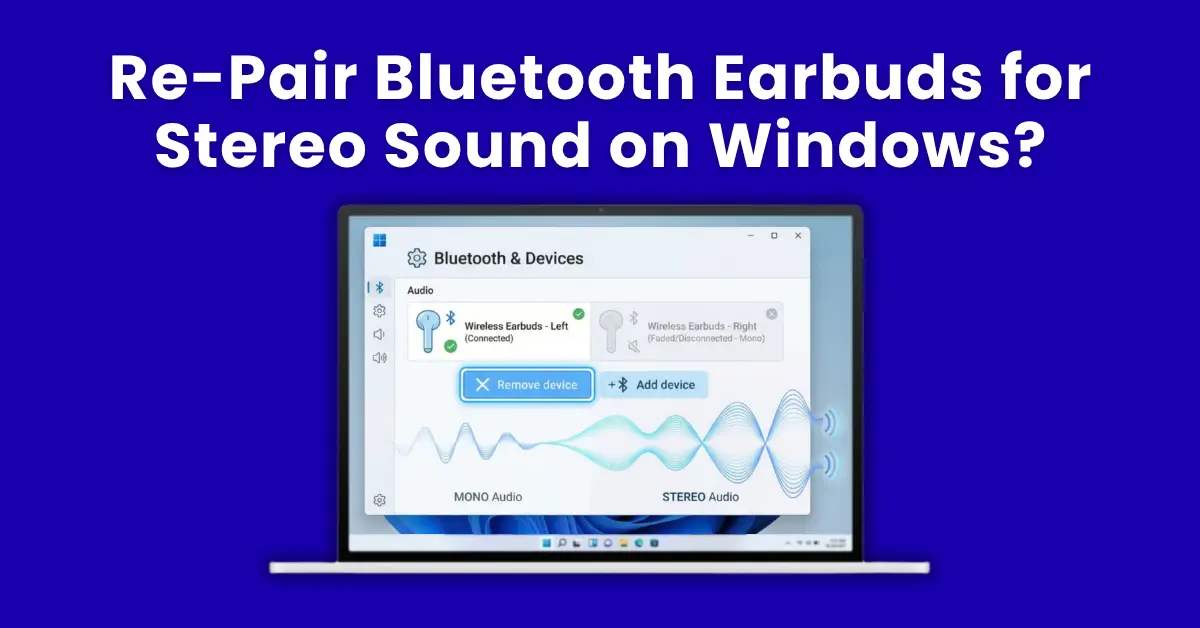
Quick Answer — How to Re-Pair Bluetooth Earbuds for Stereo Sound
- Step 1: Go to Settings → Bluetooth & devices, click the three-dot menu next to your earbuds and choose Remove device
- Step 2: Put both earbuds in the case, close it for 10–15 seconds, then open it and hold the pairing button until the LED flashes — this puts them in pairing mode
- Step 3: Click Add device → Bluetooth in Windows and select your earbuds from the list
- Step 4: After pairing, go to Sound settings, click your earbuds, and make sure the audio profile is set to Stereo (A2DP) — not Hands-Free or Mono
- Root cause: Windows often defaults to the Hands-Free (HFP) profile, which is mono — switching to A2DP restores full stereo
- One ear only? The earbuds may not be synced with each other — reset them to the case first before re-pairing
Table of Contents
- Why Bluetooth Earbuds Go Mono on Windows (The Real Reason)
- Before You Start — What to Check First (2 Minutes)
- Step 1: Remove the Earbuds Completely from Windows
- Step 2: Reset Your Earbuds to Pairing Mode
- Step 3: Re-Pair the Earbuds in Windows
- Step 4: Switch to the Stereo Audio Profile (A2DP)
- Brand-Specific Reset Methods — Sony, Samsung, JBL, AirPods & More
- Still in Mono After Re-Pairing? Advanced Fixes
- Fix Bluetooth Audio Driver Issues on Windows
- How to Stop This Happening Again
- Audio Profile Comparison — A2DP vs HFP vs HSP
- Full Troubleshooting Checklist
- 10 Frequently Asked Questions
Why Bluetooth Earbuds Go Mono on Windows — The Real Explanation
Before jumping into steps, it helps to understand what is actually happening. Most guides skip this part, which is why people end up going through the same problem every few weeks without understanding why. Here is the full picture.
Bluetooth audio does not work as a single stream. It uses different audio profiles — think of these as different operating modes — depending on what you are trying to do. The two you care about are:
This is the stereo music profile. High quality, both ears, the way earbuds are meant to sound. No microphone support in this mode.
This is the phone call profile. Enables the mic but forces audio into mono at much lower quality. This is the problem profile.
Windows decides which profile to use when you connect your earbuds. The problem is that Windows sometimes picks HFP automatically — especially if any app on your PC has previously requested microphone access, or if the earbuds were last used for a call. From that point on, Windows defaults to that configuration every time those earbuds connect.
The result? You get mono audio that sounds mediocre, sometimes only plays in one ear, and has that hollow, compressed quality that makes music unpleasant. It has nothing to do with your earbuds being broken, and nothing to do with the volume balance settings. It is entirely a profile selection issue.
You use your earbuds for a Teams call at 9am. After the call, you put on some music — and suddenly it sounds terrible. One ear is fine, the other is weirdly quiet, and there is no bass. What happened is that Teams used your earbuds' microphone during the call, which switched Windows to HFP mode. When the call ended, Windows stayed in HFP. This guide fixes that.
Before You Start — Check These Two Things First (2 Minutes)
Quick ChecksRun through these before doing the full re-pair. Sometimes the fix is much simpler and you can skip the whole reset process.
- Right-click the speaker icon in the system tray (bottom-right corner of taskbar).
- Click Sound settings (or Open Sound settings in Windows 10).
- Under Output, look at what device is selected. If your earbuds appear twice — once as "Stereo" and once as "Hands-Free" — you just need to select the Stereo one. This solves it without re-pairing at all.
- Go to Settings → System → Sound.
- Click your earbuds under Output, then look for Balance or click More sound settings → Properties → Levels → Balance.
- Make sure both Left (L) and Right (R) are set equally — usually both at 100. If one is at 0, that explains the one-ear issue without any Bluetooth problem at all.
Step 1: Remove the Earbuds Completely from Windows Bluetooth
Remove DeviceThe first step is to wipe the existing pairing from Windows entirely. Disconnecting is not enough — Windows needs to forget the device completely so it builds a fresh, clean connection from scratch.
- Open Settings (press Windows + I).
- Click Bluetooth & devices in the left sidebar.
- Make sure Bluetooth is switched On.
- Find your earbuds in the device list. They might be showing as "Connected" or "Paired."
- Click the three-dot menu (…) next to your earbuds.
- Select Remove device.
- Confirm by clicking Yes when prompted.
- Open Settings (press Windows + I).
- Go to Devices → Bluetooth & other devices.
- Find your earbuds in the list and click on them once to expand.
- Click Remove device.
- Confirm with Yes.
Step 2: Reset Your Earbuds to Pairing Mode
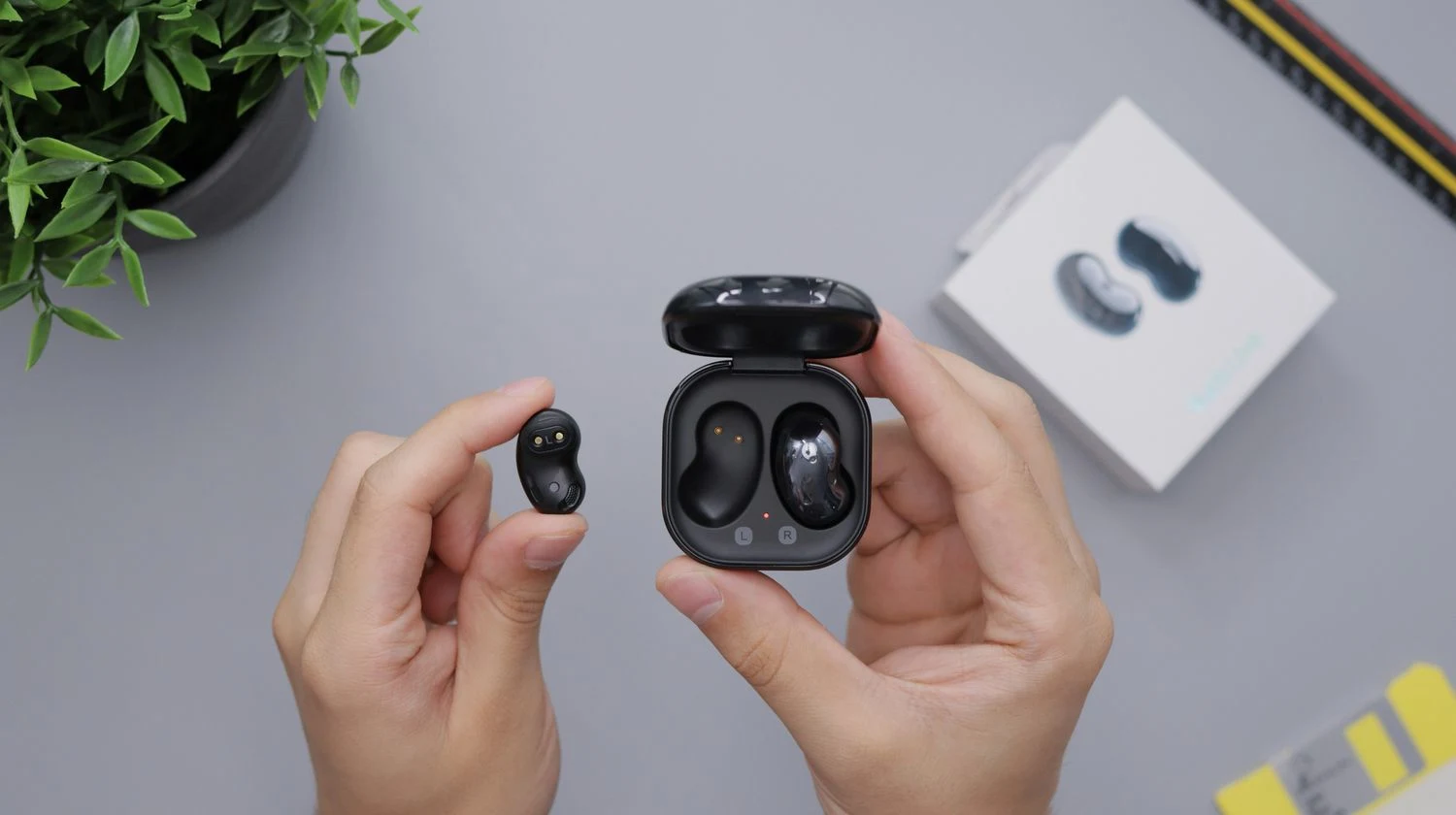
Earbud ResetNow that Windows has forgotten your earbuds, you need to put the earbuds themselves into pairing mode — the mode where they are actively looking for a new device to connect to. This is different from simply turning them on.
The exact method varies by brand and model, but the general process is the same for most true wireless earbuds:
- Take both earbuds out of your ears and place them back inside the charging case.
- Close the case lid completely and wait at least 10–15 seconds. This is the step people skip, and it matters — it forces the earbuds to reset their connection state.
- Open the case lid. The earbuds should automatically power on.
- Press and hold the pairing button on the case (or on one of the earbuds, depending on the model) until you see the LED flash rapidly in white, blue, or alternating red/blue. This indicates pairing mode is active.
- Leave the earbuds in the case with the lid open, or take them out — depending on your brand, pairing mode works either way.
Step 3: Re-Pair the Earbuds in Windows Bluetooth Settings
Pair DeviceWith the earbuds in pairing mode and Windows having forgotten the old connection, you can now create a fresh pairing that Windows will recognise properly from the start.
- Go back to Settings → Bluetooth & devices.
- Click Add device (the big button near the top).
- In the "Add a device" popup, select Bluetooth.
- Windows will scan for nearby Bluetooth devices. Your earbuds should appear by name within about 5–10 seconds. If they do not appear, make sure the earbuds are still in pairing mode (LED still flashing).
- Click your earbuds in the list. Windows will pair and connect. You should hear a chime or voice prompt from the earbuds confirming the connection.
- Click Done.
- Go to Settings → Devices → Bluetooth & other devices.
- Click Add Bluetooth or other device.
- Select Bluetooth from the popup.
- Select your earbuds from the discovered devices list.
- Click Connect and wait for the pairing to complete.
Step 4: Switch to the Stereo Audio Profile (A2DP) — The Most Important Step
Stereo ProfileThis is where most guides leave you hanging. They tell you to re-pair but do not tell you what to do if Windows still picks the wrong audio profile. Here is how to manually force stereo mode.
- Go to Settings → System → Sound.
- Under Output, look for your earbuds. If they appear twice — once with "Stereo" in the name and once with "Hands-Free" — click the Stereo one to select it as your output device.
- If they only appear once and it says "Hands-Free" or "Mono", click on the device name to expand options. Look for an audio format or profile dropdown and switch to Stereo.
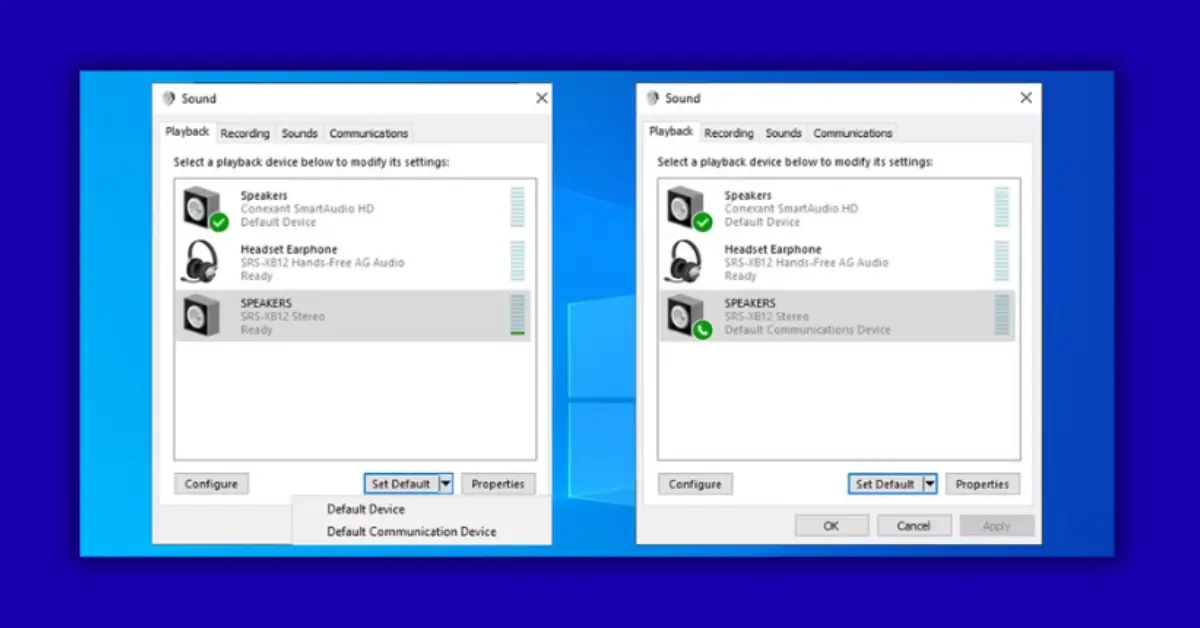
- Alternatively, open the Control Panel → Sound (search for it in Start). Under the Playback tab, right-click your earbuds and select Set as Default Device — make sure the Stereo entry, not the Hands-Free one, is the default.
- Press Windows + R, type
mmsys.cpland press Enter. This opens the classic Sound control panel directly. - In the Playback tab, you will see all audio output devices. Look for your earbuds — there may be two entries.
- The entry labelled Headphones / Stereo / A2DP is what you want. Right-click it and choose Set as Default Device.
- Right-click the Hands-Free / Headset entry and choose Disable. This prevents Windows from accidentally switching to it during calls or recordings.
- Click OK and play some audio. It should now come through both earbuds in stereo quality.
Brand-Specific Reset Methods for Popular Earbuds
By BrandThe factory reset process is different for every brand. Here are the exact steps for the most commonly used earbuds:
Apple AirPods (all models)
Put both AirPods in the case. Open the lid. Hold the button on the back of the case until the LED flashes amber then white. Now in pairing mode.
Samsung Galaxy Buds
Place both buds in the case. Open the Galaxy Wearable app → About earbuds → Reset. Or: press and hold both touchpad areas for 7+ seconds until you hear a beep.
Sony WF Series (WF-1000XM5, etc.)
Put both earbuds in case, open lid. Press and hold both earbuds' buttons simultaneously for 10 seconds until the LED flashes. Release when you hear the voice prompt.
JBL Earbuds
Remove from case. Press and hold the power/multifunction button for 10 seconds on the right earbud until LED flashes. Then put back in case and re-pair.
Jabra Earbuds
Open Sound+ app → Earbuds → Factory Reset. Alternatively, put in case and press the case button 3 times quickly. LED will flash red multiple times to confirm.
Generic / No-Brand TWS
Put both earbuds in case. Press the case button 5–7 times rapidly. Or hold the case button for 15 seconds. LED flashing pattern confirms reset. Check included manual.
Still in Mono After Re-Pairing? Advanced Fixes That Actually Work
Advanced FixesIf you went through all four steps and the earbuds are still playing in mono, something else is going on. Here are the less-obvious fixes that resolve the stubborn cases.
- Go to Settings → Accessibility → Audio (Windows 11) or Settings → Ease of Access → Audio (Windows 10).
- Look for "Mono audio" — make sure this toggle is turned Off.
- This setting forces ALL audio on Windows into mono regardless of your device. A lot of people accidentally enable this and spend hours assuming it is a Bluetooth problem.
- Open Sound Control Panel (Windows + R →
mmsys.cpl→ Enter). - On the Playback tab, right-click your earbuds (Stereo entry) and select Properties.
- Go to the Advanced tab.
- Under Exclusive Mode, uncheck both options: "Allow applications to take exclusive control" and "Give exclusive mode applications priority."
- Click OK. Reconnect your earbuds and test.
- Open Settings → System → Troubleshoot → Other troubleshooters (Windows 11) or Settings → Update & Security → Troubleshoot → Additional troubleshooters (Windows 10).
- Run the Playing Audio troubleshooter. It checks for misconfigured audio settings, driver problems, and profile conflicts automatically.
- Follow any suggested fixes it offers. This catches things that manual steps miss — especially corrupted audio enhancements settings.
- Press Windows + R, type
services.mscand press Enter. - Scroll down to Windows Audio. Right-click it and select Restart.
- Also find Windows Audio Endpoint Builder and restart that too.
- Disconnect and reconnect your earbuds after the services restart.
Fix Bluetooth Audio Driver Issues on Windows
Driver FixIf the re-pairing worked but the audio still sounds wrong, or the earbuds drop to mono after a few minutes of use, the Bluetooth driver or audio driver may be corrupted or outdated. This is more common after Windows feature updates.
- Press Windows + X and select Device Manager.
- Expand the Bluetooth section by clicking the arrow.
- Right-click your Bluetooth adapter (usually something like "Intel Wireless Bluetooth" or "Realtek Bluetooth") and select Update driver.
- Choose "Search automatically for drivers." Windows will check for newer drivers and install them if available.
- After updating, restart your PC and re-pair the earbuds from scratch (Step 1 again).
- In Device Manager, right-click your Bluetooth adapter and select Properties.
- Go to the Driver tab.
- If Roll Back Driver is available (not greyed out), click it and confirm. This reverts to the previous working driver version.
- Restart your PC and test the earbuds.
How to Stop This Happening Again
PreventionOnce you have stereo working, a couple of small changes can keep it that way and reduce the chance of Windows silently switching back to HFP mode.
- After setting Stereo as your default output, disable the Hands-Free entry in Sound Control Panel if you do not use your earbuds as a PC microphone
- In Accessibility → Audio, confirm Mono audio is permanently off — check this after every major Windows update
- If you use the earbuds for calls, switch back to Stereo manually after each call using the output device selector in the taskbar
- In Device Manager → Power Management, disable power saving for your Bluetooth adapter to prevent unexpected disconnects that reset the profile
- Keep your earbuds' firmware updated via the manufacturer's app — firmware updates often improve connection stability with Windows specifically
- Do not let multiple devices remain in your Bluetooth list that you no longer use — remove stale pairings to reduce connection confusion
Audio Profile Comparison — A2DP vs HFP vs HSP
| Profile | Audio Quality | Stereo? | Microphone? | Best For |
|---|---|---|---|---|
| A2DP | High quality (up to 320kbps) | Yes | No | Music, video, gaming audio |
| HFP | Low quality (mono, ~64kbps) | No | Yes | Phone calls, voice chat |
| HSP | Low quality (mono) | No | Yes (basic) | Older headsets, legacy devices |
| aptX / LDAC | Very high (lossless-near) | Yes | No | Audiophile listening (if adapter supports it) |
Full Troubleshooting Checklist — From Fastest to Most Involved
Full Checklist- Check if two output devices appear in Sound settings — if yes, select the Stereo one
- Check Windows Mono Audio is off (Settings → Accessibility → Audio)
- Check the Windows volume balance in Sound settings → Device Properties
- Disconnect and reconnect the earbuds from Bluetooth quick settings
- Remove device from Bluetooth, reset earbuds to pairing mode, re-pair fresh
- Set Stereo as default and disable Hands-Free in Sound Control Panel
- Run the Playing Audio troubleshooter
- Restart Windows Audio and Windows Audio Endpoint Builder services
- Update or roll back Bluetooth adapter driver in Device Manager
- Disable power saving on Bluetooth adapter in Device Manager
- Factory reset the earbuds using brand-specific method, then re-pair
- Check for Windows updates — sometimes a pending update contains audio stack fixes
- Create a new Windows user account and test earbuds there (rules out profile corruption)

10 Frequently Asked Questions — Bluetooth Earbuds & Stereo Sound on Windows
Why do my Bluetooth earbuds only play in one ear on Windows?
The most common cause is Windows connecting to your earbuds using the Hands-Free (HFP) audio profile instead of the Stereo (A2DP) profile. HFP is designed for calls — it only uses one audio channel and sounds very different from stereo. This happens most often after using the earbuds for a video call or any app that accessed the microphone. The fix is to go into Sound settings, check if two output devices appear for your earbuds, and select the Stereo one. If only one appears and it says Hands-Free, a full remove-and-re-pair usually fixes it.
How do I re-pair Bluetooth earbuds on Windows 11?
Open Settings and go to Bluetooth & devices. Find your earbuds in the list, click the three-dot menu next to them and select Remove device. Confirm the removal. Then put your earbuds into the charging case, wait 15 seconds, open the case and press the pairing button until the LED flashes to enter pairing mode. Back in Windows, click Add device, select Bluetooth, and choose your earbuds from the list that appears. After pairing completes, check Sound settings to make sure the Stereo profile is selected as your output device.
What is the difference between A2DP and HFP Bluetooth audio profiles?
A2DP (Advanced Audio Distribution Profile) is the stereo music mode — it delivers high-quality audio through both earbuds but does not support the microphone. HFP (Hands-Free Profile) is the phone call mode — it enables the microphone but forces audio into mono at much lower quality. Windows sometimes switches to HFP automatically when any app requests microphone access, which is why earbuds can suddenly sound terrible after a Teams or Zoom call. You can manually switch between profiles in the Sound settings or Sound Control Panel.
How do I switch Bluetooth earbuds from mono to stereo on Windows 10?
Press Windows + R, type mmsys.cpl and press Enter to open the Sound Control Panel. On the Playback tab, look for your Bluetooth earbuds. If two entries appear — one for Stereo/Headphones and one for Hands-Free — right-click the Stereo entry and select Set as Default Device. You can also right-click the Hands-Free entry and choose Disable to stop Windows switching to it accidentally. If your earbuds only appear once and it says Hands-Free, remove the device from Bluetooth settings, reset the earbuds to pairing mode, and re-pair from scratch.
Why does only the right or left earbud connect to my Windows PC?
This usually means the two earbuds have lost their internal sync with each other. Each earbud in a true wireless (TWS) pair needs to be in sync before one of them can connect to a PC as a stereo device. The fix is to put both earbuds back in the case at the same time, close the lid for at least 30 seconds, then open the case and take them out together. The primary earbud (usually the right one) will enter pairing mode and automatically pull the secondary one in. If this does not work, a factory reset of the earbuds resolves it in almost every case.
My Bluetooth earbuds show as connected in Windows but no sound comes out — what do I do?
Windows may have connected the earbuds without setting them as the active output device. Click the speaker icon in the taskbar, click the arrow next to the current output device, and manually select your Bluetooth earbuds from the list. If they appear twice (Stereo and Hands-Free), choose Stereo. If still no sound, try disconnecting and reconnecting the earbuds using the Bluetooth quick settings panel (the Bluetooth icon in the notification area). If that fails, restart the Windows Audio service via services.msc, then reconnect the earbuds.
How do I factory reset my Bluetooth earbuds before re-pairing?
The exact method depends on your brand. For Apple AirPods: hold the case button until the LED flashes amber then white. For Samsung Galaxy Buds: press and hold both touchpads for 7 seconds. For Sony WF earbuds: hold both earbud buttons simultaneously for 10 seconds. For JBL earbuds: hold the power button for 10 seconds. For generic TWS earbuds: put them in the case and press the case button 5 to 7 times rapidly. Always check your specific model's manual for the correct reset sequence, as the timing matters.
Can I use Bluetooth earbuds for both music and microphone in stereo on Windows?
No — this is a fundamental Bluetooth limitation. Bluetooth cannot deliver high-quality stereo audio (A2DP) and microphone input (HFP) simultaneously because the two modes use different bandwidth allocations that cannot coexist. When an app activates your microphone, Windows switches to HFP mode which is mono. This is not something Windows, your earbuds, or your Bluetooth adapter can change. The practical workaround for people who need both is to use a separate USB or wired microphone for input while keeping the earbuds in A2DP stereo mode for audio output.
Why do my Bluetooth earbuds keep disconnecting from Windows after re-pairing?
The most common causes are Windows power management shutting off the Bluetooth adapter, an outdated Bluetooth driver, or wireless interference. To fix power management: open Device Manager, expand Bluetooth, right-click your Bluetooth adapter, go to Properties and then the Power Management tab, and uncheck the option that lets Windows turn off the device to save power. For drivers: check your laptop manufacturer's support page for an updated Bluetooth driver specific to your model. Distance and physical barriers (walls, metal objects) also cause frequent disconnects — staying within 5-8 metres of your PC with a clear path significantly improves stability.
Do I need to re-pair my earbuds every time I switch between my phone and Windows PC?
Not necessarily, if your earbuds support multipoint connection. Multipoint allows earbuds to remember and actively maintain connections to two devices at once, switching between them automatically. Most mid-range and premium earbuds released since 2022 support this — Sony, Samsung Galaxy Buds, Jabra, Bose, and many others. Check your earbuds' product page for "multipoint" or "dual connection" support. If your earbuds are older or do not support multipoint, you will need to manually disconnect from one device and connect to the other by selecting it in the Bluetooth settings of whichever device you want to use next.
Related Posts
- Step 1: Settings → Bluetooth → Remove device
- Step 2: Case reset → Hold pairing button → LED flash
- Step 3: Add device → Bluetooth → Select earbuds
- Step 4: Sound settings → Set Stereo as default
- Bonus: Disable Hands-Free entry if not needed
- A2DP: Stereo music ✅ Mic ❌
- HFP: Mono audio ✅ Mic ✅ (call mode)
- HSP: Mono basic ✅ Mic basic ✅
- You cannot have stereo + mic at the same time
- Always use A2DP for music listening
Test Your Mic & Speakers — Free
Got your earbuds working in stereo? Check if the microphone is also working correctly with our free browser-based tools — no downloads needed.
Test Your Microphone Test Your Speakers- One ear only: Earbuds not synced with each other
- Flat/mono sound: HFP profile active instead of A2DP
- Connected, no audio: Not set as default output
- Keeps disconnecting: Power management or driver
- After a call sounds bad: App switched to HFP mode
- AirPods: Case button → amber then white flash
- Galaxy Buds: Hold touchpads 7 sec
- Sony WF: Hold both buds 10 sec
- JBL: Hold power button 10 sec
- Generic: Press case button 5–7 times fast