How to Reinstall Bluetooth Driver Site Microsoft.com Windows 11 and 10 (Complete Windows Guide)
By Jon | 14 January, 2026
Bluetooth is commonly used to connect a computer with wireless devices such as headsets, speakers, earbuds, keyboards, mouse, and mobile phones. It is also used to pair mobile devices with other devices to share files, audio, and documents.
However, many Windows users suddenly face problems like Bluetooth not working, Bluetooth icon missing, Bluetooth driver missing, or even no Bluetooth in Device Manager. If you are experiencing these issues and searching for how to reinstall bluetooth driver site microsoft.com, you are in the right place.
Why Bluetooth Causes Issues Sometimes in Windows
Bluetooth issues are very common in Windows 11 and Windows 10. In most cases, the problem is related to drivers or system services rather than hardware.
- Corrupted or outdated Bluetooth driver
- Failed Windows Update
- Bluetooth Support Service stopped
- Bluetooth capability disabled
- Conflicts with network drivers, USB drivers, or display drivers
- Battery or power management issues
How to Check If Bluetooth Driver Is Missing?
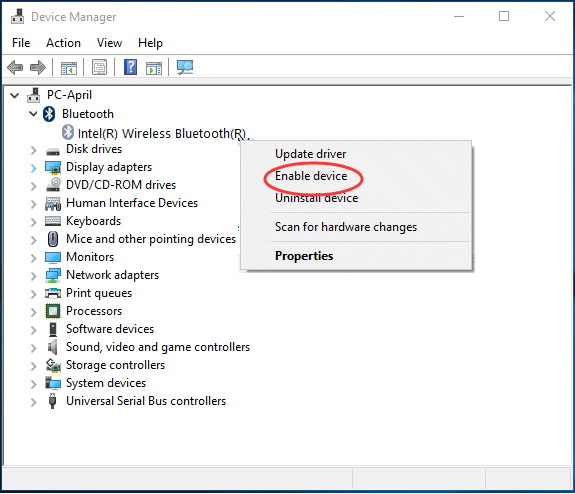
- Press Windows + X and open Device Manager
- Look for the Bluetooth section
- If Bluetooth is missing or shows a warning icon, the driver is not installed correctly
How to Reinstall Bluetooth Driver in Windows (Recommended)
- Open Device Manager
- Expand Bluetooth
- Right-click the Bluetooth adapter and choose Uninstall device
- Check Delete the driver software for this device
- Restart your computer
After restart, Windows will automatically reinstall the Bluetooth device driver.
How to Reinstall Bluetooth Driver Site Microsoft.com (Manual Method)
- Open Settings
- Go to Bluetooth and other devices
- Open Device Manager
- Right-click the Bluetooth adapter and select Update driver
- Choose Search automatically for drivers
Reinstall Bluetooth Driver Using Windows Update
- Open Settings → Windows Update
- Click Check for updates
- Install Bluetooth updates from Optional updates
Fix Bluetooth Icon Missing or Not Showing
- Open Settings → Bluetooth and other devices
- Click More Bluetooth options
- Enable Show Bluetooth icon
How to Fix Bluetooth Not Working on Windows
- Open Settings → System → Troubleshoot
- Click Other troubleshooters
- Run the Bluetooth troubleshooter
Restart Bluetooth Services
- Press Windows + R and type services.msc
- Restart Bluetooth Support Service
- Restart Bluetooth User Support Service (BluetoothUserService)
No Bluetooth in Device Manager? Try This
- Enable Show hidden devices
- Update Network drivers
- Update USB drivers
- Restart your computer
Re-Pair Bluetooth Earbuds for Stereo Sound
- Remove the Bluetooth earbuds from settings
- Restart Bluetooth
- Pair again and select Stereo
Microsoft Official Bluetooth Support
ms-contact-support //smc-to-emerald/troubleshootbluetooth
Final Verdict
If you are searching for how to reinstall bluetooth driver site microsoft.com, uninstalling the Bluetooth driver, restarting Windows, and updating drivers using Windows Update is the most reliable solution. These steps fix almost all Bluetooth driver issues on Windows 10 and Windows 11.
Frequently Asked Questions
How do I reinstall the Bluetooth device driver in Windows?
To reinstall the Bluetooth device driver, open Device Manager, uninstall the Bluetooth driver, restart your computer, and Windows will automatically reinstall the correct Bluetooth driver for this PC.
How to reinstall Bluetooth driver site Microsoft.com?
If you are searching for how to reinstall Bluetooth driver site Microsoft.com, use Windows Update or Device Manager’s update driver option. Windows automatically downloads the official Microsoft Bluetooth driver.
Why is the Bluetooth icon missing or not showing?
The Bluetooth icon missing issue usually occurs due to disabled Bluetooth services or missing drivers. Enable “Show Bluetooth icon” from Bluetooth settings and restart Bluetooth Support Service.
How do I install Bluetooth driver on this device?
To install Bluetooth driver on this device, open Device Manager, right-click the Bluetooth adapter, select Update driver, and allow Windows to install the correct driver automatically.
What should I do if Bluetooth driver is missing or no Bluetooth in Device Manager?
If Bluetooth driver is missing or no Bluetooth appears in Device Manager, enable “Show hidden devices”, update network drivers and USB driver updates, then restart your computer.
How can I update Bluetooth drivers in Windows?
You can update Bluetooth drivers through Windows Update under Optional updates or by using Device Manager’s update driver option.
How do I fix Windows Bluetooth driver issues?
To fix Windows Bluetooth driver issues, reinstall the Bluetooth driver, restart BluetoothUserService, run Windows Bluetooth troubleshooter, and keep Windows updated.
How do I reinstall Bluetooth driver automatically?
To reinstall Bluetooth driver automatically, uninstall it from Device Manager and restart the system. Windows will automatically reinstall the Bluetooth driver.
How do I reset Bluetooth on Windows?
To reset Bluetooth, turn it off, restart your computer, restart Bluetooth Support Service, and turn Bluetooth back on.
How do I update device drivers with Windows Update?
Open Settings → Windows Update → Check for updates → Optional updates to update Bluetooth, network drivers, display drivers, video card drivers, and more.
How do I fix Bluetooth not working on Windows?
If Bluetooth is not working, reinstall the Bluetooth driver, run Bluetooth troubleshooter, restart Bluetooth services, and update wireless network drivers.
How do I re-pair Bluetooth earbuds for stereo sound on Windows?
Remove the earbuds from Bluetooth settings, restart Bluetooth, and pair them again while selecting stereo mode to fix audio issues.
What is BluetoothUserService and why is it important?
BluetoothUserService (Bluetooth User Support Service) manages Bluetooth connections. If it stops, Bluetooth may not function correctly and must be restarted.
Where can I find official Microsoft Bluetooth troubleshooting help?
You can find official help at ms-contact-support //smc-to-emerald/troubleshootbluetooth, which covers reinstalling drivers, Bluetooth capability issues, and Windows Bluetooth errors.