How to Reinstall Bluetooth Driver on Windows microsoft.com (2026)
By Jon — Windows Driver Troubleshooting Expert | | 20 min read
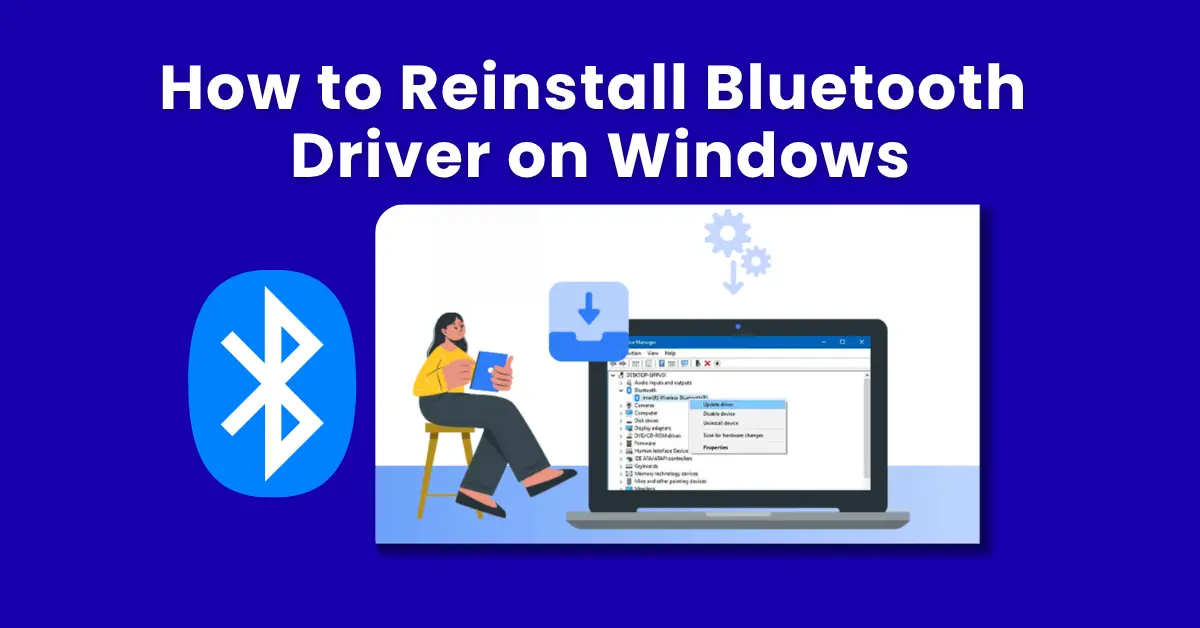
Quick Answer — How to Reinstall Bluetooth Driver on Windows
- Open Device Manager (Windows + X → Device Manager)
- Expand Bluetooth → right-click your adapter → Uninstall device
- Check "Delete the driver software" if the option appears
- Restart your PC — Windows reinstalls a fresh driver automatically
- If Bluetooth still missing, download the official driver from your manufacturer's support page
- After reinstall, test Bluetooth audio at mictest.pro/sound-test
Table of Contents
- Why You Need to Reinstall Your Bluetooth Driver
- Before You Start — Check These Things First
- Step 1: Open Device Manager and Find Your Bluetooth Adapter
- Step 2: Uninstall the Existing Bluetooth Driver
- Step 3: Restart and Let Windows Reinstall Automatically
- Step 4: Download the Official OEM Driver (If Needed)
- Step 5: Install the Driver and Verify
- Special Case: Intel Bluetooth Driver (Most Laptops)
- Special Case: Qualcomm / Broadcom Bluetooth Adapters
- Bluetooth Not Showing in Device Manager at All
- Fix Bluetooth Disconnections After Reinstall
- Which Method Is Right for You?
- Test Your Bluetooth Audio After Reinstalling
- 10 Frequently Asked Questions
Why You Need to Reinstall Your Bluetooth Driver
I have seen this exact problem repeat itself dozens of times: Bluetooth works fine on Monday, a Windows Update runs on Tuesday night, and by Wednesday morning the Bluetooth toggle is either gone from Settings or stuck in a permanent "turning on" loop. The headphones that worked perfectly now sit silently beside the keyboard.
A Bluetooth driver is the software layer that allows Windows to communicate with the physical Bluetooth adapter inside your PC or laptop. Without the right driver — or with a broken one — Windows simply cannot see the adapter, which means no pairing, no wireless audio, and no Bluetooth devices of any kind.
Here are the most common reasons Bluetooth drivers break and need reinstalling:
- Windows 10 or 11 feature update overwrote the OEM driver — this is the single most common cause, particularly with 24H2
- Driver corruption — caused by a hard shutdown, power cut, or failed Windows Update mid-installation
- Yellow warning triangle in Device Manager — indicates a driver error code that a fresh reinstall typically resolves
- Bluetooth toggle missing from Settings — happens when Windows cannot find a working Bluetooth driver to bind to
- Unknown device appearing in Device Manager — the Bluetooth adapter is physically present but Windows has no driver for it
- Bluetooth works but drops constantly — a partially corrupted driver that installs clean after reinstall
Before You Start — Check These Three Things
Do these quick checks before touching Device Manager. They take under two minutes and could save you the entire reinstall process.
Pre-Reinstall Checklist
- Check Bluetooth toggle in Settings: Go to Settings → Bluetooth & devices. Is the Bluetooth toggle visible? If it is there but stuck on "Off", try toggling it off and on again, then restart.
- Check if Bluetooth service is running: Press Windows + R, type
services.msc, and look for Bluetooth Support Service. If it shows Stopped, right-click → Start. This alone sometimes brings Bluetooth back without a driver reinstall. - Run Windows Update first: Go to Settings → Windows Update → Check for updates. Sometimes a driver update for your Bluetooth adapter is queued as an optional update. Installing it is faster than a manual reinstall.
If none of those quick fixes restore Bluetooth, continue to the full reinstall process below.
Step 1: Open Device Manager and Locate Your Bluetooth Adapter
Finding the Right DeviceDevice Manager is the command centre for all hardware drivers in Windows. This is where you will find, uninstall, and verify your Bluetooth adapter.
- Press Windows + X (or right-click the Start button) and select Device Manager.
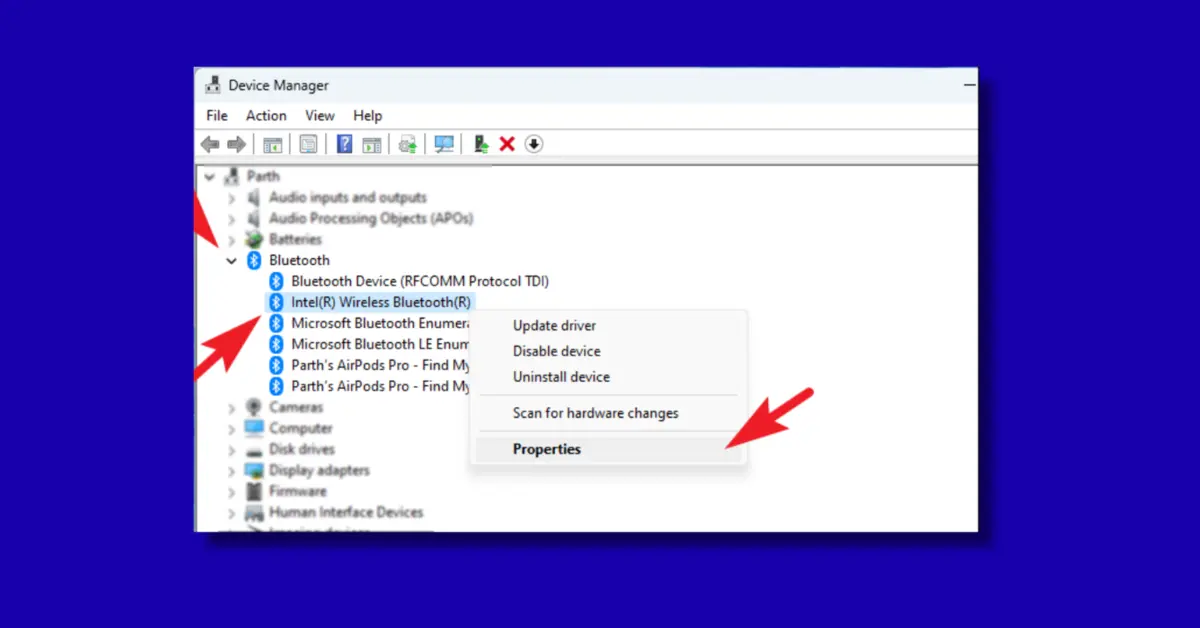
- In the Device Manager window, look for the Bluetooth category and click the arrow to expand it.
- You will see your Bluetooth adapter listed — common names include:
- Intel(R) Wireless Bluetooth(R)
- Qualcomm Atheros QCA61x4A Bluetooth 4.1
- Realtek Bluetooth 5.0 Adapter
- Broadcom BCM20702 Bluetooth 4.0 USB Device
- If you see a yellow triangle ⚠ next to the device, that confirms a driver error and reinstall is the right solution.
Step 2: Uninstall the Existing Bluetooth Driver
Clean Removal FirstThe key to a successful driver reinstall is doing a clean removal first. Simply updating over a corrupted driver often leaves broken files behind. A full uninstall wipes the slate clean.
- In Device Manager, right-click your Bluetooth adapter (e.g., Intel Wireless Bluetooth).
- Select Uninstall device from the context menu.
- A confirmation dialog appears. Check the box that says "Attempt to remove the driver for this device" or "Delete the driver software for this device" — this is critical. Without checking this box, Windows may simply reload the same broken driver on restart.
- Click Uninstall.
- The Bluetooth adapter will disappear from Device Manager — this is normal and expected.
- Do not run any driver scanner tools at this point. Proceed directly to Step 3.
Step 3: Restart Your PC and Let Windows Reinstall Automatically
The Fastest Path to RecoveryAfter uninstalling the driver, a restart is not optional — it is the mechanism that triggers Windows to detect the hardware and install a fresh driver. Skipping the restart means Bluetooth will not come back.
- Close all open applications and click Start → Power → Restart.
- Allow Windows to fully restart — do not interrupt the process.
- After logging back in, wait 60 seconds for Windows to finish detecting hardware.
- Open Device Manager again and expand the Bluetooth category.
- If your Bluetooth adapter appears without a yellow triangle, Bluetooth has been successfully reinstalled.
- Go to Settings → Bluetooth & devices and confirm the toggle is available.
Step 4: Download the Official OEM Driver (If Windows Didn't Reinstall Automatically)
For Persistent Bluetooth IssuesIf Bluetooth still doesn't appear after the restart — or if it appears but immediately shows another yellow triangle — you need to install the official driver from your PC manufacturer. This is the most reliable method because OEM drivers include full headphone and audio profile support that generic Windows drivers often lack.
- Identify your PC model: Press Windows + R, type
msinfo32, and press Enter. Your system model is listed as System Model. - Visit your manufacturer's support page:
- Dell: dell.com/support — search your Service Tag or model
- HP: support.hp.com — search your product name or serial number
- Lenovo: support.lenovo.com — search your model or use Lenovo Support app
- ASUS: asus.com/support — enter your model number
- Acer: acer.com/support — search by serial number or SNID
- Microsoft Surface: microsoft.com/surface/support/downloads
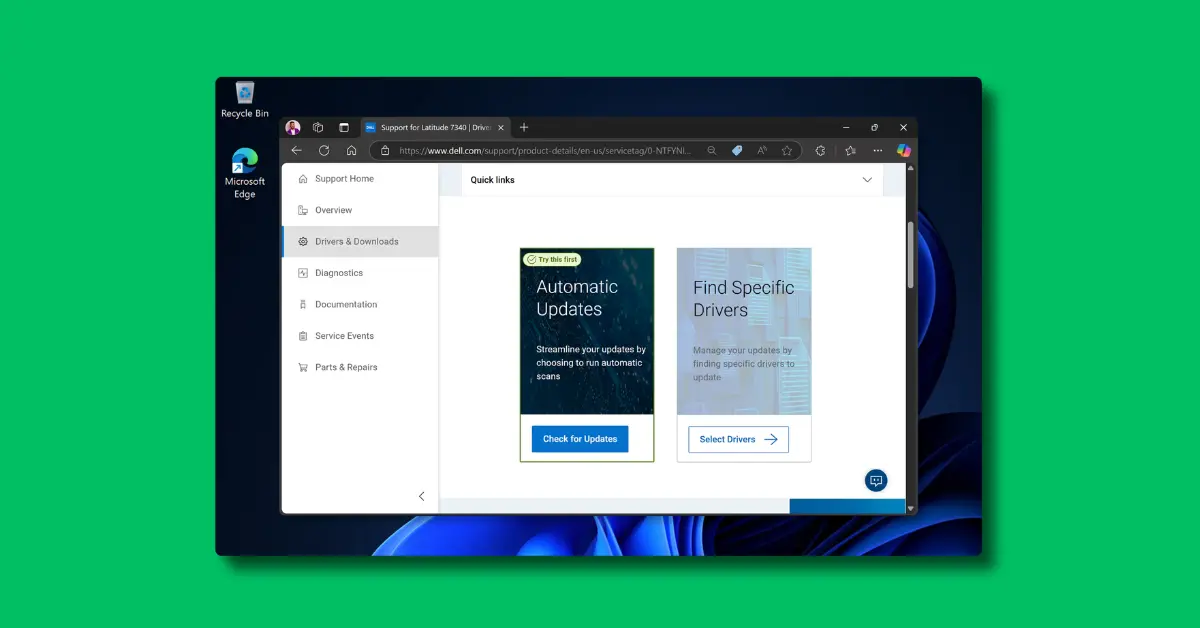
- Navigate to Drivers & Downloads on the support page.
- Filter by your operating system (Windows 10 or Windows 11) and look for a driver named Bluetooth or Wireless LAN & Bluetooth.
- Download the .exe installer file.
Step 5: Install the Driver and Verify It Is Working
Final Installation- Locate the downloaded driver file (usually in your Downloads folder) and double-click to run it.
- Follow the installer prompts — most Bluetooth driver installers are fully automatic and require only a click or two.
- Restart your PC when prompted. Do not skip this restart — it finalises the driver binding.
- After restarting, open Device Manager and confirm the Bluetooth adapter appears with no yellow triangle.
- Open Settings → Bluetooth & devices and toggle Bluetooth on.
- Attempt to pair a Bluetooth device — headphones, phone, or keyboard — to confirm full functionality.
Special Case: Intel Bluetooth Driver (Most Modern Laptops)
Intel Wireless + BluetoothIf your laptop was made in the last five years, there is a very high chance it uses an Intel Wi-Fi and Bluetooth combo chip — the AX200, AX201, AX210, or AX211 being the most common. These chipsets are used by Dell, HP, Lenovo, ASUS, and virtually every major laptop brand.
Intel Bluetooth drivers are separate from Intel Wi-Fi drivers, even though both live on the same physical chip. Reinstalling just the Wi-Fi driver will not fix Bluetooth.
- Visit Intel's Wireless Bluetooth Download page or use the Intel Driver & Support Assistant tool which automatically detects your hardware.
- Download the latest Intel Wireless Bluetooth driver package for Windows 10 or 11.
- Run the installer, select Install, and let it complete.
- Restart when prompted.
- In Device Manager, you should now see Intel(R) Wireless Bluetooth(R) without any warning icons.
Special Case: Qualcomm and Broadcom Bluetooth Adapters
Qualcomm / BroadcomOlder laptops and many budget models use Qualcomm Atheros or Broadcom Bluetooth chips. These do not have a centralised driver download tool like Intel, so you are entirely dependent on your PC manufacturer's support page for the correct driver.
One important difference: Qualcomm and Broadcom Bluetooth drivers are often bundled inside the Wi-Fi driver package. When you download "Wireless LAN Driver" from your manufacturer's support page, the installer typically installs both the Wi-Fi and Bluetooth components at the same time. Do not be alarmed if the Bluetooth section of Device Manager updates when you install what appears to be just a Wi-Fi driver.
Bluetooth Not Showing in Device Manager at All
Advanced FixIf the Bluetooth category is completely absent from Device Manager — not hidden, not greyed out, simply not there — something more fundamental has gone wrong. Work through these steps in order.
- Show hidden devices: In Device Manager, click View → Show hidden devices. Check if a Bluetooth category now appears (sometimes it is hidden after driver removal).
- Scan for hardware changes: Click Action → Scan for hardware changes. Windows re-probes all hardware connections and may detect your Bluetooth adapter.
- Check under Other devices: Expand Other devices in Device Manager. Look for any devices with a yellow warning triangle or named "Unknown device" — this is often your Bluetooth adapter waiting for a driver. Right-click → Update driver → Browse my computer → pick the downloaded driver folder.
- Check BIOS / UEFI settings: Restart your PC, enter BIOS (usually Del, F2, or F10 at startup), and navigate to the wireless/Bluetooth settings. Some laptops have a physical toggle in BIOS that disables Bluetooth entirely. Ensure it is enabled.
- Run the Bluetooth troubleshooter: Go to Settings → System → Troubleshoot → Other troubleshooters and run the Bluetooth troubleshooter. It can detect missing drivers and prompt a reinstall automatically.
Fix Bluetooth Disconnections After Reinstalling the Driver
Power Management IssueBluetooth reinstalled successfully but your headphones keep disconnecting every few minutes? This is almost always a Windows power management setting that allows the OS to switch off the Bluetooth adapter to save battery — even on plugged-in desktops. It is the most overlooked post-reinstall tweak.
- Open Device Manager and expand Bluetooth.
- Right-click your Bluetooth adapter → Properties.
- Click the Power Management tab.
- Uncheck "Allow the computer to turn off this device to save power".
- Click OK.
- Also do the same for any USB Root Hub entries under Universal Serial Bus controllers if your Bluetooth uses USB internally.
Which Reinstall Method Is Right for Your Situation?
| Situation | Recommended Method | Time Required | Win 10 | Win 11 |
|---|---|---|---|---|
| Bluetooth stopped working after Windows Update | Uninstall driver → Restart → OEM driver | ~10 min | ||
| Yellow triangle in Device Manager | Uninstall → Restart (auto reinstall) | ~5 min | ||
| Bluetooth toggle missing from Settings | OEM driver + Show hidden devices | ~12 min | ||
| Intel laptop (AX200/AX210) | Intel Driver & Support Assistant | ~8 min | ||
| Bluetooth not in Device Manager at all | BIOS check + Show hidden + OEM driver | ~15 min | ||
| Bluetooth drops/disconnects after reinstall | Disable power management in Device Manager | ~3 min |
Test Your Bluetooth Audio After Reinstalling
After your Bluetooth driver is reinstalled and your headphones are paired, always do a quick audio test before considering the job done. A successful pairing does not always mean both audio channels are balanced and working.
- Windows built-in test: Go to Settings → System → Sound → select your Bluetooth headphones under Output → click Test. Windows plays a tone in each ear separately.
- Free online sound test: Visit mictest.pro/sound-test — it plays distinct audio through the left and right channels independently so you can confirm both sides are working. Works instantly in any browser, no download, completely free.

10 Frequently Asked Questions
How do I reinstall Bluetooth driver in Windows 10 and 11?
Press Windows + X and open Device Manager. Expand the Bluetooth category, right-click your Bluetooth adapter, and select Uninstall device. Make sure to check the box to delete the driver software. Then restart your PC — Windows automatically reinstalls a fresh driver on reboot. If Bluetooth still doesn't appear, download the official driver from your laptop or PC manufacturer's support website and install it manually.
Why is Bluetooth missing from Device Manager in Windows 11?
Bluetooth disappears from Device Manager when the driver is corrupted, was removed by a Windows Update, or the adapter is disabled. In Device Manager, click View → Show hidden devices to reveal it if it is hidden. Also check under Other devices for an unknown device with a yellow triangle — that is likely your Bluetooth adapter waiting for a driver. A BIOS setting may also have Bluetooth disabled on some laptops.
Where do I download official Bluetooth drivers for Windows?
Always download drivers from your PC manufacturer's official support website — Dell Support, HP Support, Lenovo Support, ASUS Support Center, or Acer Support. Search for your exact laptop or PC model and filter by Bluetooth drivers. For Intel-based systems, you can also use the Intel Driver & Support Assistant tool, which automatically detects and installs the correct Intel Bluetooth driver for your hardware. Avoid third-party driver download websites entirely — they frequently bundle adware.
Will reinstalling the Bluetooth driver delete my paired devices?
Yes — uninstalling and reinstalling a Bluetooth driver typically removes all previously paired device records from Windows. After the driver is reinstalled, you will need to re-pair your Bluetooth headphones, keyboard, mouse, and any other Bluetooth devices. Go to Settings → Bluetooth & devices → Add device and follow the pairing process again for each device. This only takes a minute per device.
Can a Windows Update cause Bluetooth to stop working?
Absolutely — this is one of the most common reasons Bluetooth breaks on Windows 10 and 11. Major feature updates, especially Windows 11 24H2, are well-documented for overwriting OEM Bluetooth drivers with Microsoft's generic versions, which sometimes lack full functionality. If Bluetooth stopped working immediately after a Windows Update, reinstalling the manufacturer's Bluetooth driver is almost always the correct fix.
How do I reinstall Bluetooth driver without internet access?
If you have no internet access on the affected PC, try restarting after uninstalling the driver — Windows may reinstall a cached generic driver from its local Driver Store automatically. If not, use another device (phone or another computer) to download the Bluetooth driver from your manufacturer's support page, transfer it to the affected PC via a USB flash drive, and install it by double-clicking the setup file. No internet is needed for the installation itself.
How do I update Bluetooth driver in Windows 10 without Device Manager?
Go to Settings → Windows Update → Advanced options → Optional updates. Microsoft delivers many driver updates here, including Bluetooth. If your driver update is available there, install it directly. Alternatively, run the driver installer downloaded from your manufacturer's support page — it works as a standalone application and does not require Device Manager at all. Just double-click the .exe file and follow the prompts.
What is the Intel Wireless Bluetooth driver and where do I get it?
The Intel Wireless Bluetooth driver is the software that powers the Bluetooth functionality of Intel's combo Wi-Fi + Bluetooth chips (AX200, AX201, AX210, AX211) found in most modern laptops. It is separate from the Wi-Fi driver even though both run on the same physical hardware. Download it from the Intel Support website or use the free Intel Driver & Support Assistant tool which automatically identifies your hardware and installs the correct version.
Why does my Bluetooth keep disconnecting after reinstalling the driver?
Post-reinstall Bluetooth disconnections are almost always caused by a Windows power management setting that turns off the adapter to save power. Open Device Manager, right-click your Bluetooth adapter → Properties → Power Management tab, and uncheck "Allow the computer to turn off this device to save power". Apply and restart. This single setting resolves the majority of random Bluetooth disconnection issues on both Windows 10 and 11.
How long does it take to reinstall a Bluetooth driver on Windows?
The automated path — uninstalling the driver and restarting — takes around 3 to 6 minutes on most systems. If Windows reinstalls the driver automatically on reboot, you are done. Downloading and manually installing an OEM driver adds another 3 to 5 minutes depending on your internet speed. Even in complex cases, the full process from start to finish takes well under 15 minutes. It is one of the fastest and most effective Windows fixes available.
Related Posts
- Win + X → Device Manager
- Right-click adapter → Uninstall
- Check "Delete driver software"
- Restart PC — auto reinstall
- If missing: OEM driver install
- Disable power management after
Test Bluetooth Audio — Free
After reinstalling your Bluetooth driver, verify both channels of your headphones are working with our free online sound test. Left and right channels tested separately. No install needed.
Open Sound Test at MicTest.pro- Intel laptop: Intel Driver & Support Assistant
- Dell: dell.com/support
- HP: support.hp.com
- Lenovo: support.lenovo.com
- ASUS: asus.com/support
- Custom PC / USB dongle: Check adapter packaging for chipset name