How to Adjusting Volume Balance Settings in Windows 10 and 11?
By Jon — Windows Audio Expert | | 6 min read
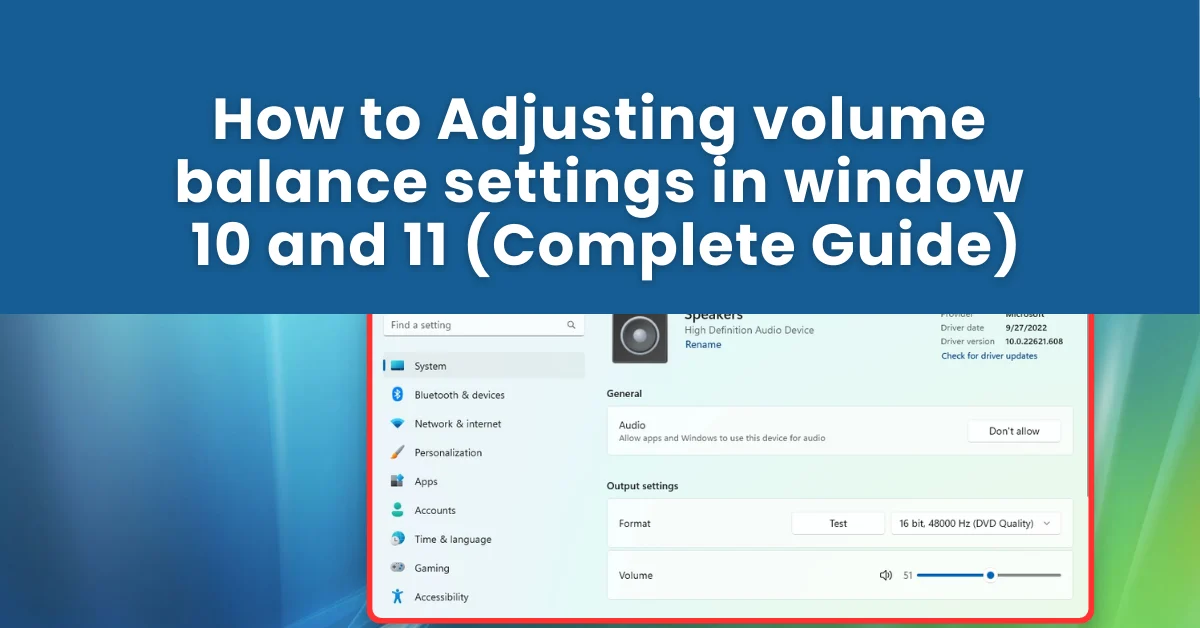
Quick Answer
- Go to Settings → System → Sound → click output device → expand Volume row
- Adjust Left channel and Right channel sliders individually
- Control Panel path: Sound → Playback → Properties → Levels → Balance
- Bluetooth issue? Disable Absolute Volume in Registry (see Method 4)
- Always verify using sound test
Table of Contents
- What Is Audio Volume Balance and Why Does It Go Wrong?
- Method 1: Settings App — Fastest Way (Windows 10 & 11)
- Method 2: Control Panel — Precise Numeric Control
- Method 3: Volume Mixer — Per-App Volume
- Method 4: Fix Bluetooth Audio Balance
- Method 5: Disable Audio Enhancements
- Which Method Should You Use?
- Common Problems and Their Fixes
- Test Your Audio Balance
- Frequently Asked Questions
What Is Audio Volume Balance and Why Does It Go Wrong?
You put on your headphones, play a song, and something feels off. The sound is clearly heavier on the left side. Or maybe your right speaker is noticeably quieter than the left, and you have been turning the overall volume up just to compensate. This is an audio balance problem — and it is far more common on Windows 10 and 11 than most people realise.
Audio balance controls how much volume goes to the left channel versus the right. When it is equal, everything sounds centred and natural. When it is off — even slightly — music sounds lopsided, dialogue feels weird, and gaming audio becomes disorienting.
The most frustrating part? Windows can silently reset your balance settings after an update. A perfectly configured setup one day can sound off the next, with no notification at all. This guide covers five methods to fix it — from the quickest 30-second Settings fix to the Bluetooth Registry solution most guides never mention.
Quick hardware check first: Plug your headphones or speakers into a different device. If the imbalance disappears, the problem is in Windows settings and this guide will fix it. If the imbalance persists on another device, the hardware itself may be faulty.
Method 1: Adjust Audio Balance via Settings App (Fastest)
Recommended — Windows 10 & 11This is the fastest and most modern way to adjust left/right audio balance. It works on both Windows 10 and Windows 11 with no Control Panel needed.
- Press Windows + I to open Settings.
- Click System in the left sidebar, then click Sound.
- Under Output, find your active device (Speakers or Headphones) and click on it.
- Locate the Volume row and click the dropdown arrow ▾ to expand it.
- You will now see two sliders: Left channel and Right channel.
- Drag either slider to adjust the balance. Changes apply instantly — no need to click Save.
- Go to Settings → System → Sound.
- Under Output, select your output device from the dropdown.
- Click Device Properties.
- Use the Left and Right sliders to set your preferred balance.
Verify it works: After adjusting, visit sound test — a free browser-based tool that plays audio through each channel separately so you can confirm your balance is correct instantly. No installation needed, works on all browsers.
Method 2: Adjust Audio Balance via Control Panel
Precise Numeric ControlThe Control Panel method gives you exact numeric values for each channel (0–100), which is useful when you need precise adjustments rather than approximate slider positioning.
- Press Windows + R, type
mmsys.cpl, press Enter — opens Sound settings directly. - Under the Playback tab, select your output device and click Properties.
- Go to the Levels tab.
- Click the Balance button.
- Enter values for L (Left) and R (Right) — range is 0 to 100.
- Click OK → Apply → OK.
The default is 100 on both channels. If your right side is quieter, start with Left: 85 and Right: 100, test it, then fine-tune in steps of 5 until it sounds even.
Method 3: Use Volume Mixer for Per-App Volume Control
App-Level VolumeIf the imbalance only happens in one specific app — a browser, game, or video player — Windows Volume Mixer lets you control each application's volume independently without touching the master volume.
- Right-click the speaker icon in the system tray (bottom-right of taskbar).
- Select Open Volume Mixer.
- You will see all currently open apps with audio listed with individual sliders.
- Drag the slider for the specific app up or down as needed.
- Click the speaker icon below any app to mute or unmute it individually.
Method 4: Fix Bluetooth Audio Balance (Disable Absolute Volume)
Bluetooth Devices OnlyUsing Bluetooth headphones and both channel sliders move together as one — no independent Left/Right control? Windows' Absolute Volume feature is the culprit. It syncs volume between Windows and Bluetooth devices but as a side effect locks stereo balance control.
- Press Windows + R, type
regedit, press Enter. - Navigate to:
HKEY_LOCAL_MACHINE\SYSTEM\ControlSet001\Control\Bluetooth\Audio\AVRCP\CT - On the right panel, find DisableAbsoluteVolume.
- Double-click it and change the value from 0 to 1.
- Click OK and restart your computer.
- Reconnect your Bluetooth device and try adjusting Left/Right balance independently again.
Method 5: Disable Audio Enhancements That Cause Imbalance
When Balance Keeps ResettingIf your balance settings keep reverting, or audio sounds processed and uneven even after adjusting sliders, Windows audio enhancement features may be overriding your settings. Disabling them often resolves persistent imbalance issues immediately.
- Press Windows + R, type
mmsys.cpl, press Enter. - Select your output device → click Properties.
- Go to the Enhancements tab.
- Check "Disable all enhancements".
- Go to the Advanced tab and uncheck "Allow applications to take exclusive control of this device".
- Click Apply → OK.
Which Method Should You Use?
| Method | Best For | Difficulty | Win 10 | Win 11 |
|---|---|---|---|---|
| Settings App | Quick balance fix | Easy | ||
| Control Panel | Precise numeric control | Easy | ||
| Volume Mixer | Per-app volume | Easy | ||
| Disable Absolute Volume | Bluetooth headphone balance | Medium | ||
| Disable Enhancements | Balance keeps resetting | Medium |
Common Volume Balance Problems and Their Fixes
Both sliders move together — cannot adjust independently
The most reported issue on Windows 11 with Bluetooth headphones. Almost always caused by Bluetooth Absolute Volume — follow Method 4 above. For wired speakers, try updating your audio driver in Device Manager first.
Audio balance resets after a Windows Update
Windows feature updates — especially 24H2 and beyond — can silently reset audio driver settings. After any major update, return to Settings → System → Sound and recheck your channel values. To prevent repeat resets, pin your audio driver version in Device Manager to block automatic driver overwrites.
Balance sounds off in one app only
Some apps — browsers, Discord, gaming clients — have internal audio processing that creates perceived imbalance. Check the audio settings within the app. For Chrome or Edge, disable audio-related extensions temporarily and test again.
Balance button is missing from Control Panel
Your current audio driver does not support per-channel volume control. Update or reinstall your driver. Dell, HP, and Lenovo users should download the official Realtek or Waves MaxxAudio driver from the manufacturer's support page rather than relying on Windows Update's generic version.
Test Your Audio Balance After Adjusting
After making changes, always test before closing settings to confirm the balance is actually correct.
- Windows built-in test: Go to Settings → System → Sound → select your output device → click Test. Windows plays a short tone through each channel separately.
- Online tool: Visit sound test — a free browser-based tool that plays audio through left and right channels independently so you can confirm the balance sounds correct in real time. Works on all browsers, no installation required.
If imbalance persists after adjusting, make small incremental changes — move the quieter channel from 85 to 90, test again, then try 95. It usually takes two or three small steps to find the perfect balance for your specific hardware.

Frequently Asked Questions
How do I adjust the volume balance in Windows 10?
Go to Settings → System → Sound → select your output device → Device Properties. Use the Left and Right channel sliders to set your preferred balance. You can also go via Control Panel → Hardware and Sound → Sound → Playback → Properties → Levels → Balance for precise numeric values.
Why is my left speaker louder than my right on Windows 11?
This usually means the Left and Right channel balance is uneven in your Sound Settings, or Bluetooth Absolute Volume is locking the stereo channels together. Go to Settings → System → Sound, click your output device, expand the Volume row, and reset both channel sliders to 100 to restore even balance.
Where is the audio balance setting in Windows 11?
Open Settings → System → Sound. Under Output, click your active output device. Find the Volume row and click the dropdown arrow ▾ to expand it. Separate Left channel and Right channel sliders will appear below the main volume control.
Can I set different volume levels for different apps in Windows?
Yes. Right-click the speaker icon in the taskbar and select Open Volume Mixer. Each open application with audio output will have its own independent volume slider you can control separately from the master volume.
How do I fix audio imbalance on Bluetooth headphones in Windows?
Disable Absolute Volume via the Windows Registry. Press Windows + R, type regedit, navigate to HKEY_LOCAL_MACHINE\SYSTEM\ControlSet001\Control\Bluetooth\Audio\AVRCP\CT, and set DisableAbsoluteVolume to 1. Restart your PC and reconnect the Bluetooth device.
Does adjusting audio balance affect microphone input?
No. Volume balance settings only affect audio output — what you hear from speakers or headphones. Microphone input levels are controlled separately under the Input section in Sound Settings and are completely unaffected by output balance changes.
What is Volume Mixer in Windows 10 and 11?
Volume Mixer is a built-in Windows tool that lets you control each application's volume independently. Instead of one master volume for everything, you can lower a browser while keeping games or music louder. Access it by right-clicking the speaker icon in the taskbar and selecting Open Volume Mixer.
Why did my audio balance reset after a Windows update?
Windows feature updates can silently reset audio driver settings and sound preferences. After any update, go to Settings → System → Sound and recheck your Left and Right channel slider values. Reinstall audio drivers from your manufacturer's website if the issue repeats.
Can I adjust volume balance from Control Panel in Windows 11?
Yes. Press Windows + R, type mmsys.cpl and press Enter. Under the Playback tab, select your device → Properties → Levels tab → Balance button. Adjust the L and R values and click OK → Apply → OK to save your settings.
How do I test my audio balance after adjusting it?
Use Windows built-in test: go to Settings → System → Sound → select your output device → click Test. Or visit mictest.pro for a free online sound test that plays audio through each channel separately so you can confirm the balance sounds correct in real time.
Related Posts
- Default balance is 100 on both channels
- Settings app changes apply instantly
- Bluetooth issue? Disable Absolute Volume
- Updates may silently reset your settings
- Shortcut: Win + R →
mmsys.cpl
Test Your Audio Balance Online
Play left and right channel audio separately to confirm your balance is correct. Free, no install, all browsers.
Open Sound Test at MicTest.pro5 Methods at a Glance
- Settings App — fastest, instant
- Control Panel — precise values
- Volume Mixer — per-app control
- Bluetooth Registry fix
- Disable Enhancements